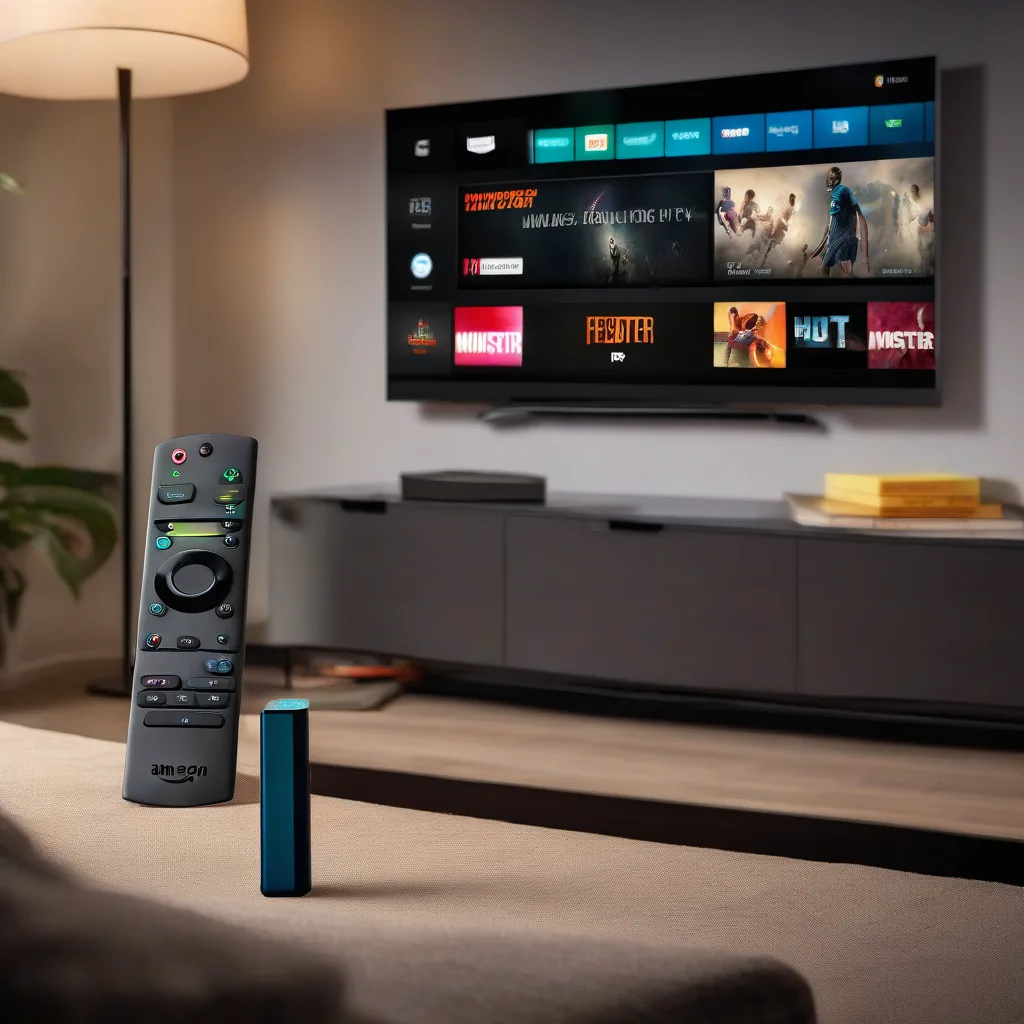
Why Choose Monster IPTV on Firestick 4K Max
Monster IPTV offers a robust library of live TV channels, movies, and on‑demand content delivered in true 4K Ultra HD. When paired with Amazon's Firestick 4K Max, you get a seamless, app‑driven experience that feels like a premium streaming device without the monthly subscription fees of mainstream platforms.
What You’ll Need
- Amazon Firestick 4K Max (firmware up to date)
- Stable internet connection (minimum 25 Mbps for 4K streaming)
- Monster IPTV subscription credentials (username, password, and server URL)
- A USB‑C power adapter (recommended 5 V/2 A) and optional HDMI extender for easier access
- Optional: A Bluetooth remote or Alexa voice remote for hands‑free navigation
Step‑by‑Step Installation Guide
-
Prepare Your Firestick
Plug the Firestick into an HDMI port on your TV and connect the power adapter. Turn on the TV and select the corresponding HDMI input.
-
Enable Apps from Unknown Sources
From the Firestick home screen, go to Settings ► My Fire TV ► Developer Options. Turn Apps from Unknown Sources and ADB Debugging ON. This allows installation of third‑party IPTV apps.
-
Install a Trusted IPTV Player
Monster IPTV works with several Android‑based players. The most popular choices are IPTV Smarters Pro and GSE Smart IPTV. Open the Amazon Appstore, search for one of these apps, and click Get to install.
-
Enter Your Monster IPTV Credentials
Launch the installed player. Choose Add New Playlist (or similar wording). When prompted, select M3U URL and paste the server URL provided by Monster IPTV. Then enter your username and password. Save the playlist.
-
Configure 4K Playback Settings
Inside the player, go to Settings ► Video. Set the resolution to 3840×2160 (4K) and enable Hardware Decoding. This ensures the Firestick uses its built‑in video decoder for smooth playback.
-
Test a 4K Channel
Select any channel marked as 4K in the playlist. You should see a crisp, high‑definition picture with vibrant colors. If the image appears pixelated, double‑check your internet speed and the player’s hardware decoding option.
"A reliable 25 Mbps connection is the sweet spot for uninterrupted 4K IPTV on Firestick 4K Max. Anything lower can cause buffering, especially during live sports." – Monster IPTV Support Team
Troubleshooting Common Issues
1. No Picture or Black Screen
Make sure the HDMI cable is fully seated and the TV input is set to the correct HDMI port. If the problem persists, restart the Firestick by holding the Select button on the remote for 10 seconds.
2. Buffering or Stuttering
- Check your internet speed with a speed‑test app on a phone or computer.
- Switch the player’s video quality to 1080p to see if the issue is bandwidth���related.
- Disable any VPN or proxy that might be throttling the stream.
3. “Failed to Load Playlist” Error
Verify that the M3U URL is copied exactly as provided. Some routers block port 80/443; try using a mobile hotspot to rule out network restrictions.
4. Audio Out of Sync
Within the player’s settings, enable Audio Sync Adjustment and shift the audio by a few milliseconds until it matches the video.
Optimizing Your Viewing Experience
For the best 4K experience, consider these extra tweaks:
- Enable HDMI 2.0 or HDMI 2.1 mode on your TV if available.
- Turn off TV motion‑interpolation (often called “Motion Smoothing”) to avoid artificial frame‑rate changes.
- Use a wired Ethernet adapter for the Firestick if Wi‑Fi signal is weak.
FAQ
- Can I use the free version of Monster IPTV?
- Monster IPTV requires an active subscription. Free trials are occasionally offered, but a paid plan unlocks the full 4K channel lineup.
- Will the Firestick 4K Max overheat during long 4K sessions?
- The device is designed for continuous 4K playback. Ensure proper ventilation and avoid covering the back of the Firestick.
- Do I need a separate VPN for privacy?
- A VPN is optional but recommended if you stream on public Wi‑Fi or want to mask your IP address. Choose a provider with fast servers to avoid added latency.
- How often does the channel list update?
- Monster IPTV refreshes its M3U playlist daily. The app will automatically pull the latest list each time you launch it.
- Can I record live TV on the Firestick?
- Recording isn’t natively supported on Firestick. However, you can use a network‑attached storage (NAS) with a compatible IPTV player that offers a “DVR” feature.